|
||||||||||||||||||||||
|
|
||||||||||||||||||||||
|
||||||||||||||||||||||
|
Changes to your Neighbourhood Alert account |
||||||||||||||||||||||
|
Hi Resident. We just wanted to make you aware of some changes to your Neighbourhood Alert account that you access through Neighbourhood Alert The first change replaces the Username & Password with a ‘One-Time Login Link’, making your account more secure. How to log in to your account (One-time login link)Logging in to your account will allow you to edit your settings and details, should you ever need to. You can login to your account from the Alert website, where you signed up. Clicking on the logo at the top of any Alert email, should take you to this website. Clicking on some of the options below an Alert message, such as the reply button, will also require you to login.
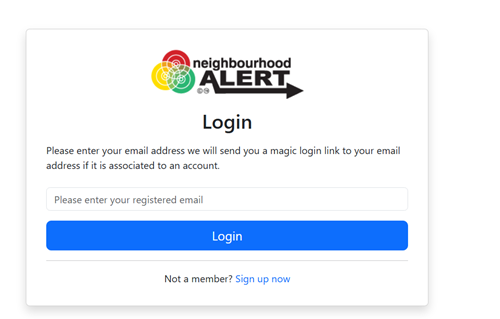
The login screen should appear as below.
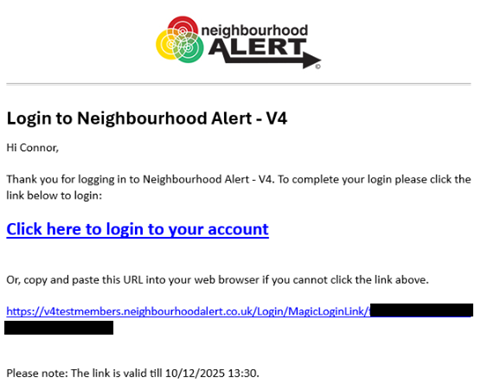
To login to your account, input your email address into the box as above. The system will then send you a One-time login link by email, from the email address alert@neighbourhoodalert.co.uk.
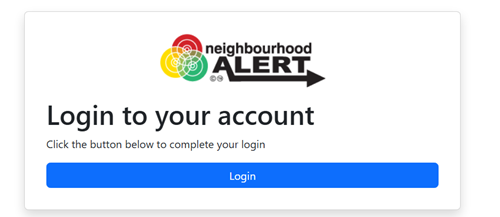
Accessing the link in this email should take you to the screen below, where you can click on the 'Login' button to log in to your account.
Second Authentication StepAt this point you should be logged into your account. However, a second authentication step is required to access certain options, such as when editing your account details.
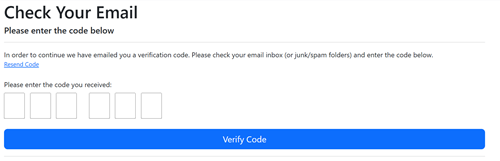
When you first go to access any protected options, the system should display the screen pictured below:
You will then be sent a verification code, either by email, from alert@neighbourhoodalert.co.uk, or by text message / WhatsApp, depending on how your account has been configured to receive messages. Once you have input the code as received, this will then allow you to access all of your account's options.
The second change allows you to add multiple alerting locations to your account. This can be useful if you want to receive news and alerts for a second location such as a work address or the address of a loved one who may not be online, without the need for you to create multiple accounts Receive Alert messages for multiple locationsWhen signing up to Neighbourhood Alert, you are required to set an address for your account. This is so that you can receive Alert messages relevant to your local area. The Neighbourhood Alert system also allows members to add multiple areas to their account, if they would like to receive Alert messages for different locations. This can be done by logging into your account, then accessing the option 'Configure areas you'd like to receive messages related to'.
From there, you may be required to enter a verification code. This will be sent to you via email, text message, or WhatsApp message depending on your account settings.
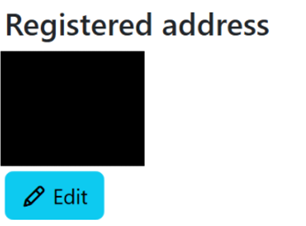
Once this has been entered, you can edit the existing address on your account.
Or you can add an additional location to your account so you can receive Alert messages for another location.
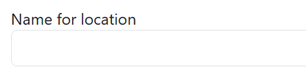
When adding a 'new alerting location', you can firstly set a name for the location.
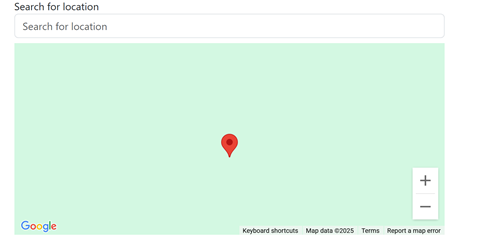
Then you can use the location search to look up a location. When you have selected a location, the map will update to reflect this. You can also drag the red pin on the map to further adjust the selected location.
From there, you can save this added location and you will now receive Alert messages for this 'Alerting Location'. You will not receive duplicate messages by having multiple alerting locations on your account. | ||||||||||||||||||||||
Reply to this message | ||||||||||||||||||||||
|



|